
Printing to CS printers on Windows OS
Mobility Print allows you to print from your personal devices, including computers, tablets, and phones connected to the RUWireless Secure network.
This system is centralized and run by OIT. This new system simplifies the complicated steps by installing one software known as Papercut Mobility Print software. (Note: this is an HTTP, not HTTPS link)
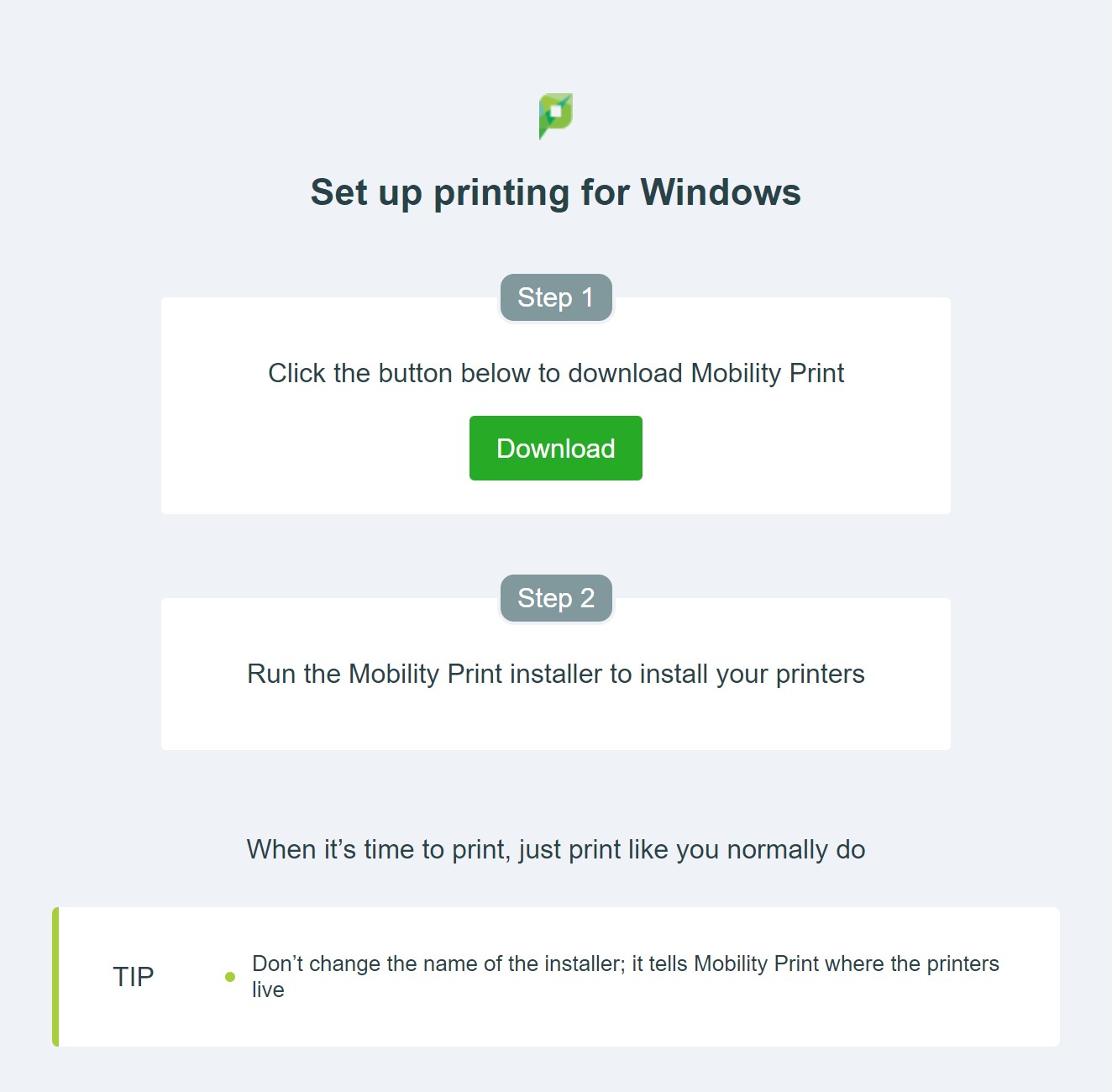
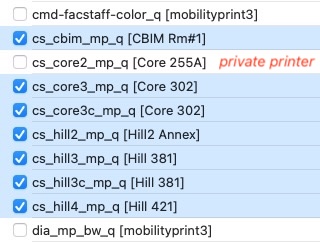
- To set up a new printer, and to print to CS printers, your computer must be connected to RUNet, RUWireless Secure, or University VPN. You may be asked to authenticate with your NetID credentials.
- After printing, you must go to the printer room and release the job with your RUID.
- All our printers are accessible to everyone who has access to the room where the printer is located.
OLD — Setup info
-
- All print jobs must go through a print server known as printserver.cs.rutgers.edu
- Jobs can be printed only from inside RUNet or using a VPN.
- Jobs must be printed using Postscript driver.
Below are steps to prepare your computer to print to CS printers.
Step 1. Install Postscript drivers on your Windows OS.
Postscript driver is not installed by default. If you have not done so, please follow Installing Universal Postscript Driver on WindowsOS
Step 2. Set up printer queue(s).
The print server will accept two supported printing methods from WindowsOS. You may pick either method.
Step 3. Print Test Page
Step 4. Check your print jobs
For more info, see the list of Computer Science Public Printers page.
For help with our systems or immediate assistance, visit LCSR Operator at CoRE 235 or call 848-445-2443. Otherwise, see CS HelpDesk. Don’t forget to include your NetID along with descriptions of your problem.
